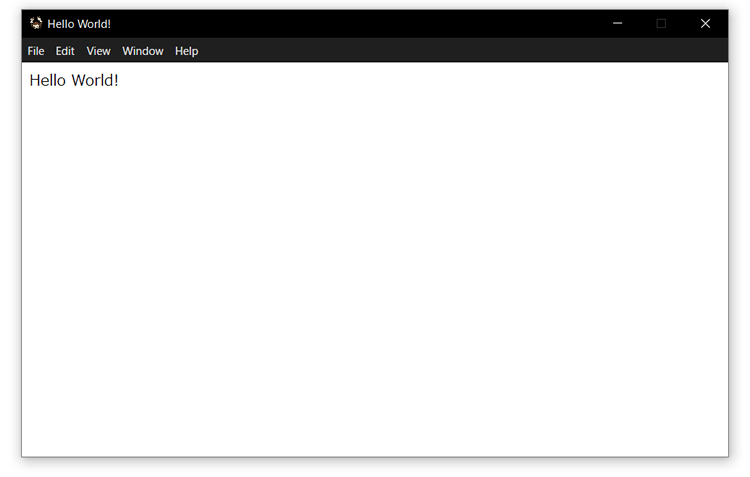
Electronでデスクトップアプリを作る
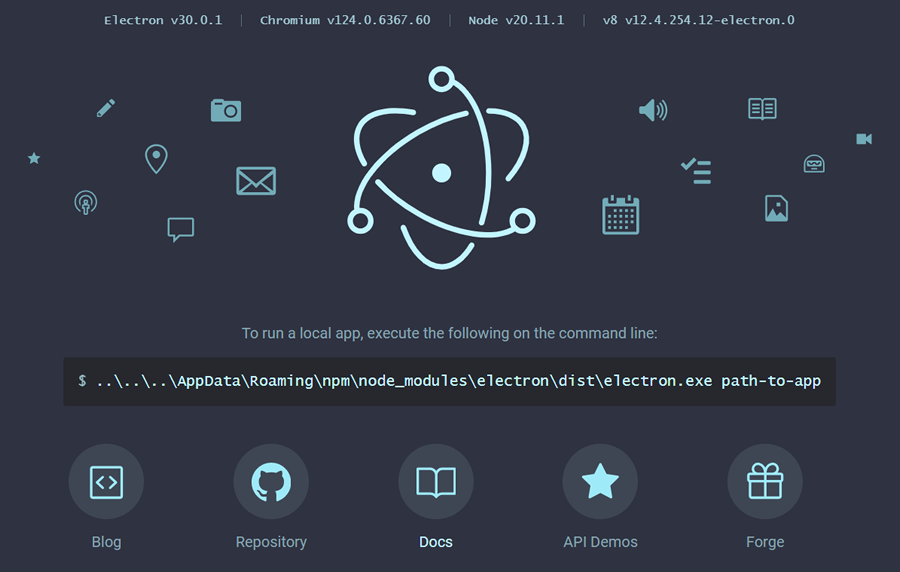
Electronとは
Electronとは、GitHubが開発したオープンソースのフレームワーク。
Windows、MacOS、Linuxといったクロスプラットフォームに対応したデスクトップアプリを開発することができる。
ChromiumとNode.jsを使用しているため、HTML、CSS、JavaScriptなどのWeb技術を駆使してデスクトップアプリをつくれるのが大きな特徴。
VSCodeやSlackをはじめ、FigmaやTwich、Microsoft Teams、SkypeなどのデスクトップアプリにもElectronが採用されている。
gitのインストール
Electronのプロジェクト作成まわりで内部的にgitが使われるらしく、事前にインストールする必要があるらしい。
Windowsでは標準でgitはインストールされていないのでインストールする。
既にインストール済みの人は必要なし。
Macはデフォルトでgitが入っているのでこの工程は必要なし。
GitとGitHubの基本的な使い方。Gitのインストールから、GitHubの使い方まで。
Node.jsのインストール
確認
コマンド実行ができない場合は、Node.jsとnpmをインストールする。
Electronのインストール
npmコマンドを使ってElectronのインストールを行う。
package.jason作成
Electronのインストール
確認
実行してみる
ローカルインストール時の実行コマンドは次のとおり
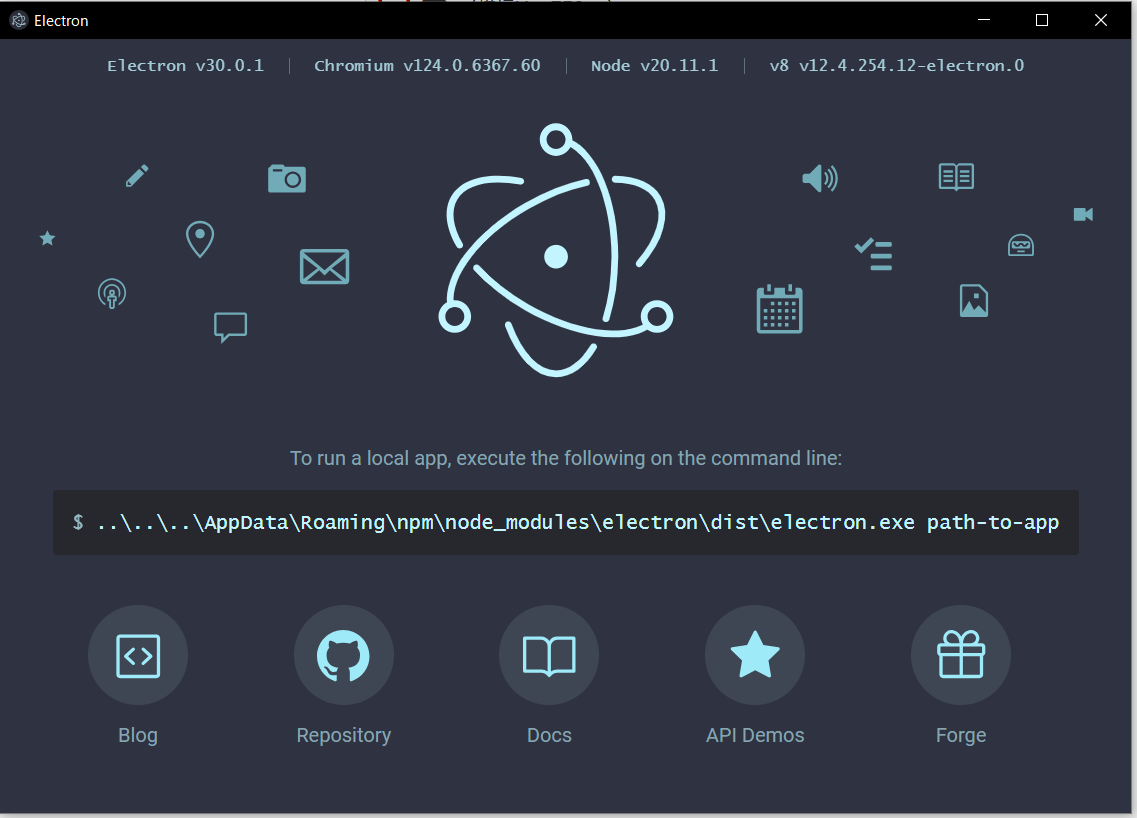
うまくいっているとアプリが立ち上がる。
main.jsを作成
main.js
"use strct";

// Electronのモジュール
const electron = require("electron");

// アプリケーションをコントロールするモジュール
const app = electron.app;

// ウィンドウを作成するモジュール
const BrowserWindow = electron.BrowserWindow;

// メインウィンドウはGCされないようにグローバル宣言
//let mainWindow = null;

// 全てのウィンドウが閉じたら終了
app.on("window-all-closed", () => {
  if (process.platform != "darwin") {
    app.quit();
  }
});


// Electronの初期化完了後に実行
app.on("ready", () => {
  //ウィンドウサイズを1280*720(フレームサイズを含まない)に設定する
  mainWindow = new BrowserWindow({width: 1280, height: 720, useContentSize: true, titleBarStyle: 'hidden'});

  //使用するhtmlファイルを指定する
  mainWindow.loadURL(`file://${__dirname}/index.html`);

  // ウィンドウが閉じられたらアプリも終了
  mainWindow.on("closed", () => {
    mainWindow = null;
  });
});
index.htmlを作成
index.html
<!DOCTYPE html>
<html>
  <head>
    <meta charset="UTF-8">
    <title>Hello World!</title>
  </head>
  <body>
    Hello World!
  </body>
</html>
実行してみる
ローカルインストール時なら、

アプリを閉じるか、Ctrl + C でアプリを終了できる。
ファイルメニューを消す

app.on("ready", () => { に、
mainWindow.setMenu(null);
を追加する。
タイトルバーを消す

titleBarStyle: 'hidden'
mainWindow = new BrowserWindow({
  width: 1280,
  height: 720,
  useContentSize: true,
  titleBarStyle: 'hidden'
});
両方消すとこうなる。
// Electronの初期化完了後に実行
app.on("ready", () => {
  //ウィンドウサイズを1280*720(フレームサイズを含まない)に設定する
  mainWindow = new BrowserWindow({
    width: 1280,
    height: 720,
    useContentSize: true,
    titleBarStyle: 'hidden'
});

  // メニュー非表示
  mainWindow.setMenu(null);
  //使用するhtmlファイルを指定する
  mainWindow.loadURL(`file://${__dirname}/index.html`);

  // ウィンドウが閉じられたらアプリも終了
  mainWindow.on("closed", () => {
    mainWindow = null;
  });
});
もしくは、
frame: false
を使ってフレームそのものを無くす。
mainWindow = new BrowserWindow({
  width: 750,
  height: 420,
  useContentSize: true,
  frame: false,
});
リサイズ禁止
resizable: false
  mainWindow = new BrowserWindow({
    width: 1280,
    height: 720,
    resizable: false
    useContentSize: true,
  });
タイトルバーのアイコンを変更する
const path = require('path');

icon: path.join(__dirname, 'icon.png') // アイコンのファイルパスを指定
const path = require('path');

// Electronの初期化完了後に実行
app.on("ready", () => {
  //ウィンドウサイズを1280*720(フレームサイズを含まない)に設定する
  mainWindow = new BrowserWindow({
    width: 750,
    height: 420,
    resizable: false,
    useContentSize: true,
    icon: path.join(__dirname, 'icon.png')
  });